This content was provided as a Professional Contribution through the FinOps Certified Professional program.
Automating AWS Compute Saving Plan Purchases
Summary: Reduce the manual effort and missed savings associated with frequent AWS Compute Savings Plan (SP) purchases by automating coverage calculations and execution. This approach involves modeling historical usage data to determine an optimal coverage target—typically between 80% and 90%—rather than aiming for full coverage. Surface these insights in a centralized internal tool so that teams can enable streamlined, one-click purchases that maintain consistent commitment levels as cloud usage scales. Automating these renewals frees up analysts from repetitive data pulls and ensures organizations capture continuous savings without introducing complex approval bottlenecks.
Savings Plans (SPs) offer a flexible pricing model that provides savings on AWS usage. Compute Savings Plans provide lower prices on Amazon EC2 instance usage regardless of instance family, size, OS, tenancy, or AWS Region. Savings Plans provide savings beyond On-Demand rates in exchange for a commitment of using a specified amount of compute power (measured per hour) for a one or three year period. For example, purchasing $10.00 of usage per hour for 3 years.
This is an actual story from the Atlassian FinOps team, so it’s important to understand how Atlassian managed their Saving Plans prior to the automation, what led the team to the idea of automations, which data points to consider, as well as design consideration.
Historically, a central Cloud FinOps managed and drove the purchase of SPs in Atlassian. Due to the flexibility that saving plans offer, Cloud FinOps team does not require consent from Engineers or Finance prior to committing. The Cloud FinOps team had a dashboard that shows the current SP converge percentage, which is how much of the EC2 compute usage is covered by Compute Saving Plans.
The FinOps analysts run their analysis to decide on the optimum coverage level, and if needed, they purchase Saving plans whenever the coverage drops beyond the target (80%).
Atlassian has an internal FinOps tool, built in-house by the FinOps team, which will be used as a UI for the automation process.
Pain Points
- Efficiency:
- It is a manual process that involves multiple steps; From noticing the drop, to running queries to get optimal coverage, to the decision about the amount to buy and finally purchasing. It can take an analyst 1-2 hours every time
- With the increase in the usage, the purchase process became more frequent and required short intervals between purchase rounds, and analysts were struggling to keep up with the cadence as we scaled
- It sometimes takes days/weeks to notice the coverage drop, which means we miss on potential savings for few weeks
- Reliability:
- Everything is manual, which makes the process error-prone. Mistakes can be made easily
- Dependency:
- The process requires someone to have a thorough understanding of the entire system.
What happens if we don’t do anything?
- We are losing money that we can save, explained previously due to context switching, determining the amount, etc. EC2 usage is increasing as we scale which could require a shorter interval time to purchase.
- $X of dollars per month can be saved as an average
What are the expected improvements?
- Efficiency:
- Everything is one click away
- Short intervals between purchase rounds
- Automated notification if coverage dropped below target
- Reliability:
- The system will prepare everything, and an overview will be displayed for confirmation of each step. Important steps are still under control.
- Dependency:
- Anyone who has authorization can use the system.
Teams and Personas Involved
- FinOps data team: This is the team responsible for data analysis and getting data out of CUR, also ideally the team usually purchasing the SPs manually. It’s important this team drives the work, as they can provide data and validate outcomes during POC. This team is expected to be the driving force behind this work, as it’s in their best interest to validate this manual process.
- Software Engineering: To build this capability internally you will need Engineers to build the tool and collaborate
- Finance: Finance team is only involved as an ‘Informed’ in the process, upon the purchase, they get notification that a purchase of $X has been completed. This has been already the case before the automation process, as SP process is fully owned and driven by a central Cloud FinOps team.
Success Metrics
- Lead time to purchase will be a click away and can be done any time. This will enable us to shorten the cadence.
- Cost of analyst time will be reduced, and analysts can spend their time on other initiatives, eventually saving more money.
- We will be able to maintain our coverage target of Y%, and potentially increase it.
- We will save $X on average per month based on the current coverage/usage.
Considerations
- A prerequisite is to have a model/query that calculated current SP coverage based on usage, and also calculated optimum coverage based on recent usage patterns.
- The new solution assumes no consent is required pre-purchase, as this will require extra step in the process.
- The FinOps portal, Atlassian Internal FinOps tool will be used as a UI for the purchase process, including showing current SPs commitments, current coverage %, target coverage.
- No more purchases will be done via AWS console. All purchases will be done through the portal.
- There could be other users of the portal, but only authorized users can purchase SP on the portal, which should only be members of Cloud FinOps team.
- Cloud FinOps team will be notified via Slack if coverage dropped below target.
Risks
- The data model built to calculate SP coverage and calculate optimum usage needs to be maintained by Cloud FinOps team, to ensure it’s always reflecting up-to-date and correct information.
- Any changes to the current process i.e. requirement to get consent from Finance or Engineers will require a change in the workflow to include these as approvals in the Slack notification.
Analyzing Usage Patterns – The Data Aspect
As a prerequisite for the process of purchasing SP, we first need to calculate the optimum coverage, as well as current SP coverage, and use these as inputs to the purchase process.
Calculate Optimum Coverage
We need to understand our recent usage patterns, and optimum coverage. Optimum coverage here refers to the percentage target we want to achieve in terms of how much of our that can be covered by SP, is actually covered by SPs. Below are some definitions:
- The cost coverable by SPs: is the amount of hourly cost that can be covered by SP, bear in mind that usage covered by SP is not only EC2 Compute Usage, but it also includes some Lambda, ECS, and EKS usage (noted below in the query).
- The optimum coverage: is the percentage target we want to achieve in terms of SP coverage from total coverable cost. This percentage can vary depending on the FinOps team target, however the standard benchmark is 80% coverage. Which means 80% of cost coverable by SPs is covered by SP. Some companies wouldn’t want to leave money on the table, and aim for 90% or even 95% coverage
This can be calculated by the following formula:
Optimum coverage %: (a/b)*100
Where:
a: The hourly amount of our SPs (the ideal amount)
b: The cost coverable by SPs
This requires looking at our usage patterns for the previous period. The previous period can vary from one company to another, however we recommend looking at the last 4 weeks of usage (assuming no holidays occurred in the last 4 weeks).
We do this by looking at the weekly usage on line items eligible for SPs for the last 4 weeks of usage. The line items eligible for the Saving Plans are presented in the sample query below. This query will be valid on CUR line items (with basic update to field names, but should be easy mapping). It’s worth mentioning you should exclude any Spot usage from this, as Spot usage is not eligible for Saving Plan purchases.
– Getting hourly usage coverable by SP for a specific month –
 SELECT
    CAST(lineitem_usagestartdate AS string) AS lineitem_usagestartdate,
    lineitem_usageamount,
    unblendedcost_withoutri,
    month
  FROM
    CUR
  WHERE
    month = '{MONTH}'
    AND lineitemtype in ('SavingsPlanCoveredUsage', 'Usage')
    AND (
      -- Lambda
      (
        lineitem_productcode = 'AWSLambda'
        and productfamily = 'Serverless'
      ) -- EC2
      OR (
        lineitem_productcode = 'AmazonEC2'
        and productfamily in (
          'Compute Instance',
          'Compute Instance (bare metal)',
          'Dedicated Host'
        )
      ) -- ECS
      OR (
        lineitem_productcode = 'AmazonECS'
        and productfamily = 'Compute'
      )
      OR (
        lineitem_productcode = 'AmazonEKS'
        and productfamily = 'Compute'
      )
    )
    AND lineitem_description not like '%Spot%'
The above query will get the hourly usage amount for each hour. However, it will not show 0 usage for hours where there was no usage – because we queried the usage table to get this data, so we need the missing piece of the puzzle- which you still need to analyze to understand vacancy in the SPs. Therefore the above query should be a cartesian join with another query that’s getting numbers of hours (in the same format as CUR timestamp) for the same weeks, so that the final outcome shows total number of hours in the 4 weeks, with 0 usage for hours that had no usage.
Afterwards, you apply a percentile to that hourly usage (for example 10th percentile), and this will show you the usage hour value where 90% of the usage occurs above this value i.e if the query shows you $400, that means for 90% of the hours, you have usage above $400, so it’s safe to assume you can purchase $400/hour of SPs commitments
You can verify this outcome by looking at a sample of a week from the dataset where you multiplied it by the cartesian join to get full 24 hours a day, and look at individual rows, 90% of the hours, the usage should be $400/hour or more.
Understanding Current SP Coverage
Another important factor to need to consider in the process is the current SPs commitments, and how much it’s covering from the coverable usage, which is the SP coverage.
To get this number, we look at the current purchased SPs that have not expired:
- SP coverage: is the amount of hourly cost that can be covered by SP, bear in mind that usage covered by SP is not only EC2 Compute Usage, but it also includes some Lambda, ECS, and EKS usage (noted in the query above).
This can be calculated by the following formula:
SP coverage %: (a/b)*100
Where:
a: Current active SP commitments
b: The cost coverable by SPs
--How to get current hourly SP commitments –
SELECT SUM(lineitem_unblendedcost)/count(DISTINCT lineitem_usagestartdate) as hourly_sp_cost
   FROM CUR
   WHERE month= '{MONTH}'
   AND lineitemtype='SavingsPlanRecurringFee'
Takeaway
- The optimum coverage target can vary from an organization to another. Eventually, that’s the desired level of coverage you want to get to. Some teams would want to aim for the maximum, but it’s always ideal not to get to 100%, and aim for somewhere between 80%-90% coverage.
- By looking at both the coverable cost, and the optimum amount and how much is the current SP commitments, you can calculate how much extra you need to purchase.
Design Considerations
Display EC2 Hourly Commit and Percentage of Saving Plan Coverage
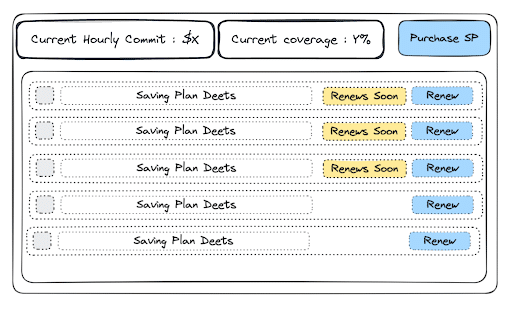
In the FinOps Portal, there will be a section for savings plans. It will include stats and a list of current savings plans. The stats will cover the current EC2 hourly commitment and the percentage currently covered by saving plans. The current list of saving plans will be ordered by expiring soon, with those closest to needing a renewal at the top. If a savings plan is three weeks or less till renewal, they will carry a warning.
Allow Saving Plans to be Purchased or Renewed
We have two primary actions in the savings plan section of the FinOps Portal. Renew savings plan or purchase savings plan. AWS offers a list of offerings for Compute Savings Plans (i.e. 1 Year/3 Years. Also, partial upfront, no upfront, full upfront). We only consider one purchase option. We should add an extra confirmation step whenever a purchase or renewal button is put through. This could be an additional modal or an extra tick box to confirm selection. We need to allow for commitment to be edited if required for renewals.

For purchasing, the portal should suggest the amount to be purchased if we are not hitting the target%. If we are a lower %, the purchase modal should suggest what hourly commitment is required to make that happen.

Upon completion of any purchase or renewal, the FinOps Slack bot can post a confirmation post tagging the analysts in the FinOps slack channel.
Slack Notification When We Drop Below 80%
When our current hourly commitment drops below target %, the FinOps Slack bot should notify the analyst in our Slack channel. We can use a link to the portal in the notification message for easy access.

Technical Stack
- Kotlin Spring Boot for the backend
- Databricks for the back-end data
- React TypeScript for the frontend
- AWS as CSP
Outcomes Achieved
We have a tool that the Cloud FinOps team can use anytime to see the current hourly SP commitments, current coverage %, target, and if there’s any SPs expiring next month, and any SPs scheduled for purchase.
The tool also includes notifications on Slack to the team members in case the coverage dropped below the target, or if there’s any SPs that will need to be renewed. Below is a screenshot of the actual tool, with dummy data for confidentiality purpose

The Achieved Improvements
- Efficiency:
- Purchasing SP is now one click away
- We have significantly shortened intervals between purchase rounds to align with the growth in the usage
- Cloud FinOps team get automated notification if coverage dropped below target
- Increased rate optimization, as the tool enabled us to constantly stay above the desired converge target, without wasting weeks between rounds
- Reliability:
- The portal has all the data we need, and an overview is displayed for confirmation of each step
- Dependency:
- All members of Cloud FinOps team can safely purchase SPs using the portal and the information provided
Lessons Learned and Takeaways
- Lessons Learned
- Building this capability internally requires solid software engineering skills as well as collaboration between software team and data team to ensure the accuracy of data used in the decision making process.
- AWS documentation for API integration is not ideal, and it’s a matter of trial and error.
- It’s important to analyze who should be involved in the decision making process while buying SPs. if Finance or Engineering teams need to give their consent, this needs to be considered in the workflow of the automation.
- Obtaining approval should be easy, users should.
- Lead time to purchase should be a click away and can be done any time, this is a main factor in the success of the process.
- SPs can be purchased in 1 year or 3 years, but the fact that it’s an hourly spend commitment, it’s not cheap, make sure you plan carefully your coverage as usage patterns can fluctuate leading to vacancy in the SPs.
- Takeaways
- Automating the SP purchase can save the Cloud FinOps team a significant amount of time. Especially in scenarios where the purchase rounds become more frequent.
- Another benefit of the automation is removing dependency on a analysts doing the manual analysis every time, and also the manual part which is very prone to human errors.
- Deciding on your optimum coverage is a learning curve, we recommend aiming for 80% coverage and then validate in the few weeks after, as usage patterns can fluctuate leading to vacancy in the SPs.
- Automating such a process is a continuous cycle of improvement, but it’s important to start and take feedback from the users as you progress. We first started with just automating purchasing new SPs, then we improved the tool to renew SPs, and also schedule the purchase of SPs in the future, and split a purchase into multiple purchases. But we wouldn’t have developed all these features upon launch, it’s important to start, get something out to the users, and collect feedback .